Welcome to M.B.M. Engineering College Alumni Association Web Portal
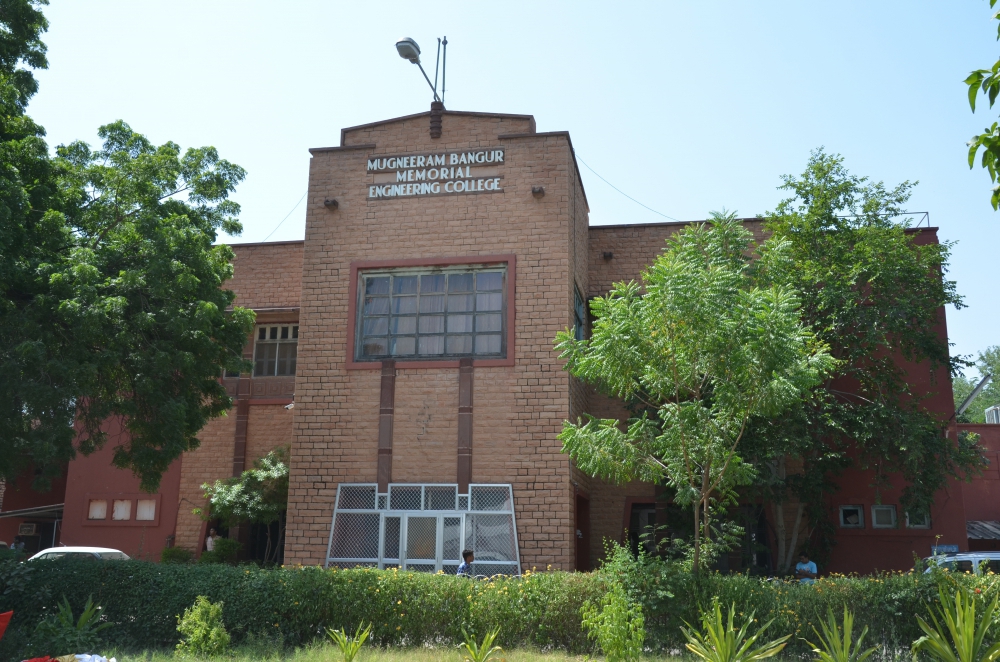
M.B.M. Engineering College is one of the oldest engineering colleges in India. Established on 15th August 1951. The college boasts of its high academic standards, as it has has produced excellent quality engineers throughout, who have contributed immensely for the technological development of the country, including Space and Atomic Energy. It is now converted into a Multi Disciplinary University by an act of Government of Rajasthan
This Web Portal is created for viewing and futher obtaining the wherabouts of all M.B.M. Engineering College Passout Alumnae, so as to make a consolidated database, irespective of their membership in the Alumni Association.
Names and particulars of many Alumnae, including all the alumnai who are members of association, are included in this database. The basic data of all alumnai can be viewed, without login, though the link Alumnai Summary, which includes the status of their membership in the association and availibilty of their email address in the database
Alumnai, whose names are included here, can login with (i) their Email Address (if avaialable in the database) or (ii) their Alumni ID, created at the time of registartion (or data entry by office), along with the their passwords. Initially the default password is combination of last name, first name and passing year in small case without any spaces, which can be changed by the member after the first login. All alumnai, who now register on this web portal, can create password of their choice at the time of registration. All alumnai, who are already registered, can edit their own data and also view the details of all other alumnai. Details can be searched batch wise or with the Last / First Name. Forgot Password link is privided in the Login Page, though which alumnai can reset their passwords
Alumani Summary includes availibilty of Email address in the database. In case Email is not registered, alumnai can login with their Alumni ID. Default Alumni ID is combination of last name, first name, passing year, degree code and branch code, in lower case and without any spaces. In case any any alumni, whose email is not available in the database, can also contact alumni office for entering the alumni email address in their profile data.
All Passout students of M.B.M. Engineering College / M.B.M. University, whose names are not available in the database, are requested to register on this web portal, so as to make this database complete. Alumnai, whose profile data is not complete, should edit their profile data after due login.
Students should not register on this web portal.

Scholarship
The Alumni Association strives to help needy and meritorious students of MBM Engg college in their academic pursuits. Our Alumni generously contribute towards this cause.

Help Students
The Alumni Association taps into our Alumni network to help students in their academic/co-cirricular goals after/during their study in MBM Engg College.

Help Our College
The Alumni Association supports the college with relevant infrastructure facilites, seminars, talks, technical and non technical support from time to time.

Build Our Community
The Alumni Association is constantly in touch with all Alumni of college, keeps everyone posted with the latest updates of the college and keeps the Alumni network vibrant.
Guide for New MBM Alumni Web Portal
A: HOME / WELCOME MODULE:
- Header: Header module includes:
- Association Logo, Association Name, Address, Contact Phones & Email Address.
- Link buttons for REGISTER, LOG IN (Before Login) and LOGOUT, Welcome Message (After Login).
- Welcome Page: Welcome page is multi-tab page, having following tabs:
- Welcome: includes photo slider, Founder Principal photo, Birthday / Anniversary messages (including member photo), General Messages, Important Announcements and Association’s responsibilities.
- Guide: Guide for using this web portal.
- Objectives: Narrates aims and objectives of association
- History: History of association and all past presidents / Secretary names.
- Committee: Working Executive Committee Member Table
- Membership: Member types, Membership Fee, Procedure for becoming new member & Bank Details for Contributions / Donations.
- Donations: Guide for registering non-alumni donors, adding donations particulars on web portal and downloading donation receipts.
- Messages: Messages from President / Secretary
- Contact: Association contact details and location map.
- Students: Registration procedure for students, Application for seeking scholarship & Notices regarding call for entering on-line scholarship application for particular academic year.
- Notices: Notices for meetings, inviting donations and other important announcements
- What’s New: New developments in Association or its Web Portal.
- About: Association milestones, activities and web portal development team.
Some of the tabs may not be visible, when there is no relevant information available for that tab.
B: MEMBERSHIP MODULE:
Membership Module is developed for four types of users, namely (1) Alumni Members, (2) non-Alumni Donors, (3) Students and (4) Office Admin Staff. Alumni can further register (or change their membership type anytime afterwards) as Member (a) Ordinary, (b) Life, (c) Fellow and (d) Patron. Membership module mainly consists of (1) Registration Module, (2) Member Profile Module, (3) Login Module (4) Member Contribution Module, and (5) Member Summary Module. Software coding has been done in such a way that the same codes cater to all four types of users.
Members can also view Birthdays / Wedding Anniversary Dates through link Members ⇒ Birthday / Anniversary for any selected month. Birthday / Anniversary Greetings are sent to individual members daily,from the system every day, for all those members, whose birth / anniversary dates and email addresses are available in the system database. A common information message for Member Birthdays / Anniversaries is sent daily from the system through MBM Alumni Google Group Email. Messages for Birthday / Anniversary for the day, along with member photo, are also displayed on the Home Page in a content rotator window.
B1: REGISTRATION MODULE:
- For registering as new member, desirous user should click link button REGISTER. Read data entry guide lines in this form and then close guide window with Close Window
- Enter your data sequentially from top to bottom preferably using TAB key for moving to next field. Once Member Type, Branch, Degree, Passing Year, Last Name and First Name are entered, Member User ID will be auto generated and entered in Member User ID input box, when Country Code is selected from drop-down menu, an alert message will confirm availability for Member User ID. Non-availability of Member User ID, indicates that the member is already registered. Alumni Members must enter 'first degree obtained from MBM' in the Registration Module.
- Membership No and Member User ID fields will be populated after data entry / registration automatically.
- Alumni / Students should click button Verify Email Address to get OTP on the entered email address. This OTP should be entered Verification Code input box. (Emails sent for OTP from the server, are not being accepted by hot mail / outlook mail / yahoo mail / rediff mail presently)
- After entering data in all fields, click button REGISTER, for registration. If entered Email Address or Mobile Number is already entered in the system database earlier, the submitted registration form will not be accepted.
- After successful registration, Member Profile form will open automatically. It is a multi-tab form for entering member profile data, detailed in Member Profile Module. Complete profile entries in this form and submit each tab after entering requisite details
B2: MEMBER PROFILE MODULE:
This module page is multi-tab page, namely: (a) Main, (b) Address, (c) Family, (d) Education, (e) Job (for users other than students) & Scholarship (for students). Details required to be entered in Family and Education tabs are different for students as required for scholarship application, compared to alumni members. This form can be opened and edited again anytime by clicking button Members ⇒ Member Profile after due login.
B2-1 MAIN:
The details entered in Registration Form are pre-filled in this form. Enter remaining details in this form and upload your photo to the server. Photo can be uploaded by clicking Upload Photo button. It will open a pop-up window, where photo can be selected and uploaded to the server. Close the pop-window after photo upload and then click button Update Main Profile Details, in the Profile Page, to save photo upload particulars and data entered in the form. Students are required to enter certain data required specifically for scholarship application.
B2-2 ADDRESS:
This module provides for adding multiple addresses with four different types of addresses. Form for entering new Address can be opened through button Add New Address. Option Yes for House for Rent can be selected, if member can provide house for rent to desirous members. Enter key can be used for adding multiple lines in Address input. City / State names and Pin Code should not be entered in Address input box. Click button Update Address for saving existing addresses or Save New Address for saving entered new addresses. Use button Close Window, if new address form needs to be closed without saving.
B2-3 Family:
Family member details can be entered by Members in this module. Click Add New Family Member button for adding new family member. Use Update button for saving existing members, after Editing or Save New Family Member button, after entering new member data for saving entered data.
Students are further required to enter Occupation, Working Organisation , Aadhar and Annual Income details for all earning members of the family, as required for scholarship application. Students must update family income particulars. as applicable for current academic year. Students, who are supported by person other than Father / Mother, should select relationship as Other and enter the details including his income in Family Tab.
B2-4 Education:
Alumni Members should enter details of higher education obtained after first degree from MBM in this module. The higher education can be either from MBM or any other institution. Further process of entering and saving form data is similar to Address / Family tabs.
Students are required to enter details and marks obtained in the examinations held in the previous academic year (corresponding to the academic year for which scholarship is being sought) in the Education Module. Student of first year should enter examination name, institute name, passing year and marks of final year / two semesters of final year, in the examination prior to the entry in first year in MBM. This form is required to be filled for each academic year by students.
B2-5a: Job:
Alumni Members should fill this tab for all past / present jobs in this tab form. Open form by clicking button Add New Job. Use fill data for each job in separate form and save it by clicking button Save New Job. Each job can be edited anytime afterwards also and saved by clicking button Update Job No.
B2-5b: Scholarship:
This form is required to be filled each academic year, when order for inviting applications for scholarships is issued by association. Students are required to enter data regarding their expenses, financial assistance available from other sources, other family liabilities, amount of scholarship requested and selection of up to three scholarship Group IDs from Scholarship Master. Students are also required to enter details of work to be undertaken by them in association activities and also record acceptance of declaration and undertaking. Students should also enter details of extra curricular activities, more specifically those, who are applying for Inspire-95 scholarships. Scholarship Group IDs will be selected by clicking in the respective rows, in the scholarship master, which opens in a pop-up window, on clicking the button Get Scholarship Group IDs. Students will be able to enter data in Scholarship Tab, only when the requisite data is entered correctly in the Main, Address, Family and Education Tabs.
B3: LOGIN MODULE:
- Click on Button LOGIN to open login page
- Select Role from drop-down menu, enter Member Email and Password. Click button Log In.
- In case member, who has forgotten his password, can click button Forgot Password. Select Member Type, enter Email Address and Submit form. It will send a link to your email address. Sometime, email may be delivered in spam folder. In such case first move the email to INBOX and then open email. Click on the link RESET PASSWORD. It will open a page in web browser, where you can enter new password and submit the form. It will change your password. Members, who have not registered their email address in the system so far, can login with Member User ID. Default user ID is Last Name, First Name, Batch Year, Degree Code, Branch Code (all in small letters and without any space). Similarly, default password is First Name, Last Name, Batch Year. Members, who are not able to login should contact Alumni Office Mobile: 6378857325 or send email on address mbmalumni@yahoo.com, for entering their email address in the system and entering new password.
- Batch and MBM Group coordinators have been identified. Their names can be seen on the Home Page in Coordinators drop down menu, where one can open and view Batch / MBM Groups Coordinator lists. Members may please contact them, in case of any difficulty. All Batch Coordinators have names and login particulars of their batch-mates for providing assistance for the first login. Members, whose email address is registered in the system, can get the phone numbers of coordinators, by clicking Contact button in the MBM Group / Batch Coordinator tables.
- Members can change password after login, through link Members ⇒ Change Password. Members should change their password, in case (a) password is auto generated by system or (b) changed by office admin on member request.
B4: MEMBER CONTRIBUTION MODULE:
- Contribution Entry Page (for membership fee contribution, donations etc.) can be opened through link Members ⇒ Contribution Entry. Enter all requested details in the form and select appropriate Contrib Head and Contrib Sub-head (if applicable) and click Save Contribution Record. On the top of this page, summary of all previous contributions / donations will be displayed.
- Members can also view / edit all contributions through link Accounts ⇒ Contributions. Once the contribution is verified by office admin / treasurer, one can not edit his contribution, but he can download contribution receipt by clicking button Download Contribution Receipt in the respective row of the contribution table.
B5: MEMBER SUMMARY MODULE:
Member Summary module can be opened by clicking button Members ⇒ Member Summary. It gives multiple options for filtering records on desired parameters namely, Member Type, Passing Year, City, Last/First Name and Member Status. After selection of desired parameters and clicking Search button, will display summary of all records in a table below. Clicking the button View in the respective row, will open corresponding Profile Page below the table. Only Office Admin is authorised to edit the data on this profile page. Others can only view profile data of the member.
Office Admin can also create password for the selected member, by clicking the button Manage in the respective row. He can also delete particular record; in case a duplicate record is found for any member.
C: BATCH / MBM GROUP COORDINATORS:
Click link button Coordinators ⇒ MBM Group or Coordinators ⇒ Batch to view tables of these coordinators. Members having their Email Address in the system database can click button Contact in the respective row, enter Email Address in the box and click button Get Contact Phone to view mobile / phone number of coordinators.
Web Admin / Office Admin will see Edit buttons instead of Contact button in the tables for editing / changing existing coordinators. They can also add new coordinators by clicking button Add New.
D: ACTIVITIES MODULE:
This module consists of four sections, namely (1) Photo Gallery, (2) Association News. (3) Alumni News, (4) Minutes of Meetings, (5) Member Comments. Last two sections are visible only after login.
D1: Photo Gallery:
Click link Activities ⇒ Photo Gallery to view this section. Select Photo Category from the drop-down menu. Icons for the photos in that category will be displayed. Click on any icon to view larger photo on screen below the icons.
Web Admin / Office Admin can create new Photo Category though link Admin ⇒ Post Gallery Photos ⇒ New Photo Category and add new photos through link Admin ⇒ Post Gallery Photos ⇒ Post New Photo. It will open a pop-up window, through which new photos can be uploaded for the selected category.
D2: Association News:
Click link Activities ⇒ Association News to view this section. This page shows date-wise news about activities of association, associated photos and links for downloading attachments.
Button Edit buttons in each news row and button Add News at the top of the table are visible to the Web Admin / Office Admin / Secretary, who can edit existing news or enter new news. When EDIT button is clicked, view is changed to Edit Mode with new buttons Upload Files and Update News. News Text column in the corresponding row is changed to a window with MS Word like formatting buttons. With Upload Files button, new photos / files can be uploaded to the server and with Update News button, contents of the row can be saved. With this, the row view also changes to view mode.
D3: Alumni News:
Click link Activities ⇒ Alumni News to view this section. This page shows date-wise news relating MBM Alumnae, associated photos and links for downloading attachments.
Other things are identical to Association News Section, except that the editing / entering new news authority is with Alumni Nitesh Kataria / Web Admin / Office Admin.
D4: Minutes of Meeting:
Click link Activities ⇒ Minutes of Meeting to view this section. This page shows Association’s Executive Committee / Annual General Body meetings and links for downloading attachments. This section is visible only after login by members.
Other things are identical to Association News Section, with Editing / Adding authority with Web Admin / Office Admin / Secretary.
D5: Member Comments:
Click link Activities ⇒ Member Comments to view this section. In this section comments / suggestions regarding association’s activities or improvements in web portal design can be placed by any member. The response to the comments can be entered by Web Admin / Office Admin / Secretary. This section is visible only after login by members.
E: ACCOUNTS MODULE:
This module consists of mainly four sub modules, namely: (1) Contributions, (2) Payments, (3) Fixed Deposits, (4) Reports. This section also included handling of cash advances and corresponding expenses from cash advances, contracts and contractor payments, TCS accounting, bank transactions, eventual income & expenditure report. This section also provides entry of names of bulk contributors like companies or batch contributors, who make bulk contributions for the activities of association through link Accounts ⇒ Contributor Group. The names entered here will be available for contribution entry, when Member Type is selected as Bulk Contributor. The authority of maintaining this section is mainly with Treasurer, but Office Admin can assist him for data entry. This section is not visible to all members, but reports are visible to Association’s executive working committee members.
E1: CONTRIBUTION MODULE:
This module can be opened through link Accounts ⇒ Contributions. It opens Contribution Search part of the page. The search parameters, which can be selected or entered are (a) Member Type, (b) Passing year, (c) Degree, (d) Branch, (e) Contribution Head, (f) Contribution Sub Head, (g) Contribution Status and (h) Last/First Name. One can select any number of parameters and click button Search for displaying contribution records in table below the Search Form per parameter selection. If no parameter is selected, it will open a table for all records. The table will give minimal summary of all records with an Edit in each row. Clicking Edit button, will open full record in editable form below the table. One can edit and save record by clicking button Save Contribution Record. If the contribution is verified, one can download Contribution Receipt in PDF format by clicking button Download Contribution Receipt. This form has dropdown menus for Transaction Mode, Contrib Head and Contrib Sub Head selections. Contrib Sub Head menu will be populated only on selection of an option in Contrib Head, if applicable, else it will remain empty. Although, there is a provision in web portal for entry of contribution by any registered contributor, but its verification can only be done by Treasurer / Office Admin through this section. Receipt Download button in Member Contributor Entry Section or in this section will be enabled only after verification of contribution. Any contribution entry made through bank transaction is automatically updated in bank transaction module also.
Clicking of button New Contribution in Contribution Search section, opens another page with search parameter section for searching member for adding new contribution entry. The search parameters, which can be selected or entered are Member Type, Passing year, Degree, Branch, Profile status, City and last/First name. Clicking button Search will open a table based on selected parameters, along with a button Add New in each row. Clicking this button will open a blank form for new contribution entry, along with summary of all previous contributions. Receipt number will be generated only when Receipt Date is entered, Verified ‘yes’ option is selected and the form is submitted by clicking button Save Contribution Record. After submitting the form, it will reopen with receipt number with a button for downloading contribution receipt.
Donor Name should be entered only when some donor wants receipt of donation in different name, else it should be left blank.
Certain receipts entries like Bank Opening Balance, Income Tax Refundable, Savings Bank Interest etc. cannot be done through normal contribution module. These entries can be done through the form Miscellaneous Entries. Which opens through the link Accounts ⇒ Misc. Entries. More such heads can be added to this form in future based on experience.
E2: PAYMENT MODULE:
This module can be opened through link Accounts ⇒ Payments. It opens Payments Search part of the page. The search parameters, which can be selected or entered are (a) Payment Head, (b) Payment Sub Head, (c) Payee Name (d) Verified (e) Period From & To. After selecting / entering search parameters, click button Search. It will open a table for all payments based on parameter selection, with Edit button in each row. Clicking Edit button, will open detailed form below the table for the corresponding row entry.
In this form Advancee Name is required to be selected only when payment for expenditure is done from cash advance given to Advancee, else it should be left blank. Similarly, Contractor Name and Work Name should be entered only when payment is done to contractor for given work order. Add Payee Name to whom actual payment was made. Payment Title should include purpose for which payment is made. Select TDS rate and SD rate if applicable. Net Amount will be calculated by the system. Payment Voucher No and TDS Voucher No will be generated after entering Withdrawal Date, selecting Verified ‘Yes’ and submitting form by clicking button Save Payment Record. Buttons for Downloading PDF files of Payment Voucher and TDS Voucher (if applicable) will be visible only after submitted form reopens.
A button, named New Payment is available for opening a blank new payment form on Payments Page. At the top of this page, two date inputting fields for period selection and button Get TDS Details are provided. In case TDS collected from contractor is to be deposited in income tax, use these input fields and button for pre-filling TDS details during the entered period in the payment form. In other cases, these are not required. For other payments, use instructions given in para above.
ADVANCES SUB MODULE:
This module has been developed for maintaining and tracking cash advances and expenses incurred from the given advances. The details of advances given to the office staff or batch function coordinators or any other working committee members and expenditure can be easily maintained through this module. For entering new Advancee Name or adding new advance to exiting Advancee, click button Advances in the Payment Search section of payment form. It will open a new page, with Member Search form for searching name of new advance and a drop-down menu with existing advance names. Search parameters for finding new advancee name are Member Type, Batch Year, Degree, Branch, Profile Status and Last/First name. Click button New Advance after selecting / entering requisite parameters. It will populate names in Advancee Name drop-down menu, from which final advance name can be selected. Rest of the advance details can be entered in the form and click button Save Advance record. The button Download Advance Voucher will be visible for verified advance record, through which PDF file for advance voucher can be downloaded.
For editing existing Advance record, one can select option form Existing Advances drop-down menu. The form will be populated with selected advance record, which can be edited and saved.
E3: REPORTS MODULE:
In this module, eight reports, namely (1) Receipts, (2) Payments, (3) Advances (along with expenditures from given advances), (4) Bank Transactions, (5) Fixed Deposits, (6) TDS, (7) Balance Sheet and (8) Contracts are available. The reports can be viewed Financial Year wise. Total Credits / Debits are also available on header of the report. Reports can also be filtered on Accounting Heads and Accounting Sub Heads. All these reports (except Contracts) can be downloaded in PDF or Excel format, by clicking corresponding button available at the top of the table. Further, in report, a Search box at the top right of the table is provided to get filtered data based on entry in this box. Also, the data can be sorted on any column by clicking the respective column header.
F: SCHOLARSHIP MODULE:
Scholarship application can be entered by any registered student in Membership Module itself. Student should see Membership Module on this page and Students Tab on Home page. It has five sub modules namely (1) Scholarship Master, (2) Award Scholarships, (3) Applied / Awarded, (4) Awarded Scholarships, (5) Set Application Dates and (6) Scholarship Summary. All links in this module are visible only to Web Admin / Office Admin / Treasurer / Scholarship Committee in charge. Links for Scholarship Master and Scholarship Summary are available to Students and Alumni members. All tables presented on screen in various sub modules can be downloaded on PDF / Excel format.
F1: SCHOLARSHIP MASTER:
This is a master form for keeping particulars for all available scholarships. This form has been redesigned to provide visibility of only those scholarships, which are in force for the applicable academic year. This form can be opened by students in view mode form the button Get Scholarship IDs in Scholarship Tab of the Member Profile form, with option selection box in each row for selection of up to three Scholarship IDs. Selected IDs will be directly entered in the scholarship form.
When this form is opened through link Scholarships ⇒ Scholarship Master and entering start year of academic session, it will open with (a) Edit button in each row for editing corresponding row record and (b) Add New Scholarship button. The form provides entry/selection of Scholarship Name, Sponsored By, Scholarship Amount, Scholarship Numbers, Scholarship Types (Merit, Merit-cum-need, Need Based, Adoption), Scholarship Branch (with multiple branch selection), Scholarship Years (with multiple year selection), Gender, Applicability Start Year and Validity Period. Click button Save Scholarship Name for saving the scholarship record.
F2: APPLIED / AWARDED:
This module can be opened through link Scholarships ⇒ Applied / Awarded. It requires entering of academic year and selection of All Applied / All Awarded. All Applied selection gives names of applying students against each scholarship, whereas All Awarded selection gives names of students against each awarded scholarship.
F3: AWARD SCHOLARSHIP:
This module is designed for viewing scholarship applications entered on-line on the web portal and subsequently recording award of scholarships by the scholarship committee to students. This module can be opened through link Scholarships ⇒ Award Scholarships. It requires entering of (a) Application Status (All / Accepted / Rejected), (b) Academic Year (c) Batch Passing Year (optional) and (d) Registration Date (From). Clicking Search Applications button will open application with minimum details of all students as per selected parameters. This table can be downloaded in PDF / Excel format by clicking respective button at the top of the table. By clicking button View Form & Award Scholarship in the requisite row, will open entire scholarship form with student details and photo on the screen. This application form can be downloaded as PDF file by clicking button Export Scholarship Form to PDF.
Below the application form, Document Certification & Award of Scholarship form is included. Scholarship Committee in-charge / Treasurer can select options ‘Yes’ for documents like Income Certificate, Mark Sheets, Last Fee Challan and Category Document, if OK and then select ID of the awarded scholarship from the drop-down menu. Clicking button Save Scholarship Award Status will save award data in the server.
F4: AWARDED SCHOLARSHIP:
This module can be opened through link Scholarships ⇒ Awarded Scholarships. It requires entering of academic year and selection of Scholarship Payment Status options namely, All Awarded / Payments Pending / Payments Done. It will present data in a tabular form as per the selection. This table can also be downloaded in PDF / Excel format. Further, clicking of button Scholarship Payment for unpaid scholarships and clicking of button View / Edit Payment for paid Scholarships, will open form for entering / editing scholarship payment particulars.
F5: SCHOLARSHIP SUMMARY:
This module can be opened through link Scholarships ⇒ Scholarship Summary. This module is identical to Awarded Scholarships, except that the information provided in the table is not editable.
G: ADMIN MODULE:
- This module contains links of certain master data tables, where master data can be entered / modified by Web-admin, Office-admin and Treasurer.
- The data in various tabs of Welcome Page is placed there with links. The data in all of these links can be edited through application Pages. It can be opened through link Admin ⇒ Edit Pages.
- Scroll Messages can be edited though application link Admin ⇒ Edit Scroll Messages.
- Member login history page is also available, which can be viewed by web-admin / Office Admin only.
Aims and Objectives
Aims and Objectives of the Association are as under :
M.B.M. Engineering College Alumni Association History
First Executive of the Association
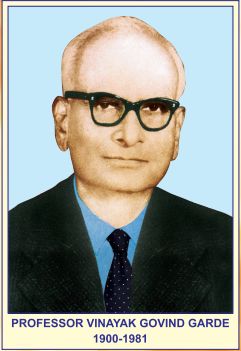
The first election of the Association were organized under the chairmanship of Dr. Alam Singh and Dr. Dharam Vir Talwar as the convener. In the first instance the Association elected Dr. Alam Singh as President of the Association, but he modestly declined. The Association then elected Dr. S. Divakaran as the first President, Dr. D. V. Talwar as the Honorary Secretary and Prof. J. L. Kankaria as Treasurer along with the members of the Executive of the Association. On the last day of the Silver Jubilee function, the Association commenced its activity by arranging a contributory lunch in honor of Ex-Principal V. G. Garde and Mrs. Garde who had specially come to Jodhpur for this function.
Early Activities
The first Batch of Diploma holders completed 25 years in the year 1978 after passing out from the college. The Association organized felicitation function of this Batch. Since then, every year the Association felicitates alumni of the college batch-wise completing 25 years after graduation and presents mementos. In the year 2001, on 22nd Dec. 2001 the Silver Jubilee Function of the 1976 Engineering Batch was held. Likewise the teachers completing 25 years after joining the college are also felicitated. These functions are timed along with the Annual General Meetings of the Association.
A news-letter is published every year at the time of Annual General Meeting bearing the activities of the Association and highlighting the news in the college campus.
By the Golden Jubilee Year emotionally attached to their alma mater are about eleven thousand alumni who walked in their youth into its lovely corridors. The Association as of now has built up its membership to more than 5000 members. In the Golden Jubilee year the membership to the Association is sure to rise exponentially.
Building of the Association
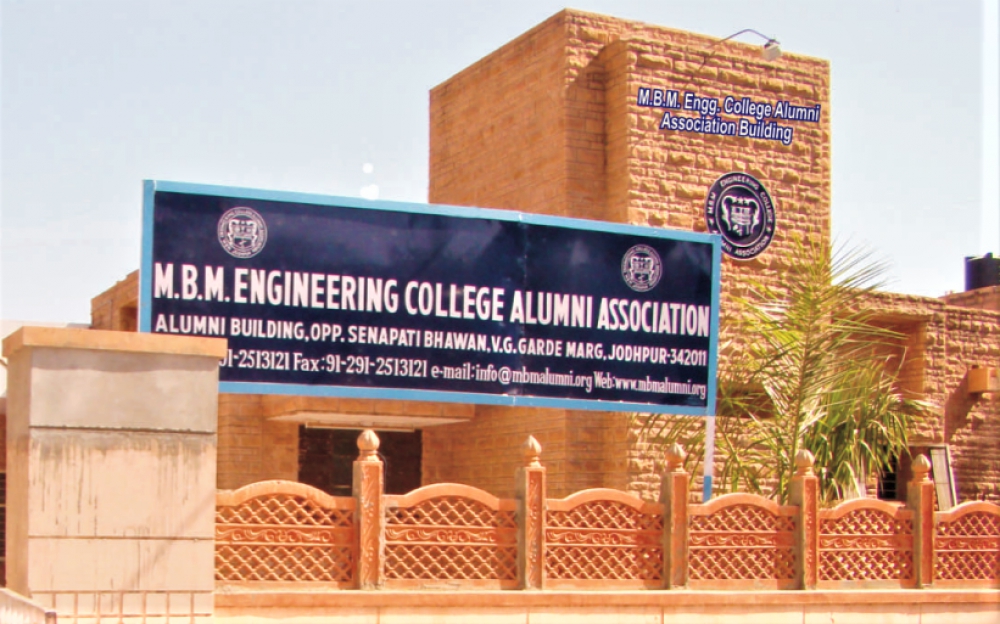
In the year 1987, the University of Jodhpur with Dr. M. L. Mathur as the Vice-Chancellor, allotted land measuring 600 sq. yards to the Association. Dr. Mathur himself laid the foundation stone for the Alumni Bldg. on the 31st January 1990, on the auspicious occasion of Basant Panchmi. Funds for the Alumni Building were collected during the Presidentship of Er. H. Kalla, Er. G.S. Bhandari, Er. R. C. Mathur and Er. L.L. Surana and the first phase of the Association building was completed in the period from 1990 to 1994. Since 1993 the Association is availing 80G benefits to the donors under the Income-Tax Act by having constituted a MBM Engineering College Welfare Trust for the same.
Memberships
By now the Association has established 17 chapters in the country and 4 chapters in America, Canada. Chapters at Boston and Los-Angeles in America and at Pali (near Jodhpur) are going to be added up shortly.
The Association has its membership categories as Ordinary member, Life member, Fellow member and Patron member.
It is worth mentioning that, the figure of more than 5000 Alumni members to this Association as on date would not have been but for the genuine efforts of late Prof. D. S. Bhandari. A true guide and beloved teacher of the students and an intensely devoted and dedicated person to the Institution and the Association. He sacrificed himself for the alma mater.
|
Our Flag Bearers |
|||
|
S.No. |
Year |
President |
Hony. Secretary |
|
1. |
1976-77 |
Dr. S. Divakaran |
Dr. D.V. Talwar |
|
2. |
1977-79 |
Dr. S. Divakaran |
Prof. J.L. Kankariya |
|
3. |
1979-81 |
Dr. S. Divakaran |
Dr. D.M.Surana |
|
4. |
1981-83 |
Dr. Alam Singh |
Dr. D.M.Surana |
|
5. |
1983-84 |
Er. L.N. Maheshwari |
Dr. N.K. Khandelwal |
|
6. |
1984-88 |
Er. H.K. Kalla |
Dr. V.K. Bhansali |
|
7. |
1988-90 |
Er. G.S. Bhandari |
Dr. M.R. Sethia |
|
8. |
1990-93 |
Er. R.C. Mathur |
Dr. Damodar Sharma |
|
9. |
1993-94 |
Er. L.L. Surana |
Er. V.P. Gupta |
|
10. |
1994-96 |
Er. L.L. Surana |
Dr. S.K. Bhargava |
|
11. |
1996-97 |
Dr. V.K. Bhansali |
Dr.P.R.Sindhi |
|
12. |
1996-97 |
Dr. V.K. Bhansali |
Dr. Rajendra Karwa |
|
13. |
1997-99 |
Dr. V.K. Bhansali |
Dr. Rajendra Karwa |
|
14. |
1999-00 |
Prof. D.S. Bhandari |
Dr. Rajendra Karwa |
|
15. |
1999-00 |
Er. R.K. Agarwal |
Dr. Rajendra Karwa |
|
16. |
2000-01 |
Er. R.K. Agarwal |
Dr. Rajendra Karwa |
|
17. |
2001-03 |
Er. R.K. Agarwal |
Er. Sohan Bhootra |
|
18. |
2003-05 |
Er. R.K. Agarwal |
Er. Sohan Bhootra |
|
19. |
2005-07 |
Er. Sohan Bhootra |
Er. A.R. Kumbhat |
|
20. |
2007-09 |
Er. Sohan Bhootra |
Er. A.R. Kumbhat |
|
21. |
2009-11 |
Er. R.K. Agarwal |
Er. N.K. Kansara |
|
22. |
2011-13 |
Er. R.K. Agarwal |
Er. P.C. Purohit |
|
23 |
2013-15 |
Er. P.C. Chowdhary |
Er. P.C. Purohit |
|
24. |
2015-17 |
Dr P C Purohit |
Dr Ajay Sharma |
|
25. |
2017-19 |
Dr P C Purohit |
Prof Jayashri Vajpai |
|
26 |
2019-21 |
Prof S S tak |
Dr. R. K. Vishnoi |
|
27 |
2021-23 |
Prof S S Tak |
Dr. R. K. Vishnoi |
|
28 |
2023-25 |
Dr. Sushil Bhandari |
Er. Jai Singh Choudhary |
| M.B.M. Engineering Alumni Association Executive Committee | |||
| OFFICE BEARERS | EX. OFFICIO MEMBERS | ||
| President | Dr. Sushil Bhandari | Dean | Prof Sunil Sharma |
| Vice President | Er. Prem Sukh Sharma | Im Past President | Prof (Dr) Shyam Singh Tak |
| Vice President | Prof. Arvind Kumar Verma | Im Past Secretary | Dr R. K. Vishnoi |
| Hon Secreatry | Er. Jai Singh Choudhary | - | - |
| Hon Joint Secretary | Er. Hari Singh Panwar | - | - |
| Treasurer | Er. Rajeev Chowdhary | - | - |
| ELECTED MEMBERS | CO-OPTED MEMBERS | ||
| 1. Sh. Harish Kumar Khyani | 7. Sh. Rajendra Rathore | 1. Er. S K Parihar | - |
| 2. Sh. Narendra Nahar | 8. Sh. Shanti Chand Mathur | 2. Er. P R Dave | - |
| 3. Dr. Sushil Saraswat | 9. Dr. Jagdish Prasad Sharma | 3. Er. Kamlesh Kumar | - |
| 4. Dr. Emrati Bhaskar | 10. Sh. Girish Loda | 4. Prof. Jayashri Vajpai | - |
| 5. Er. Manish Sharma | 11. Sh. Yaspal Chouhan | 5. Er. Ashok Mathur | - |
| 6. Er. Gopa Ram Chodhary | 12. Sh. Jalam Singh | - | - |
| All Patron Members are Executive Committee Members | |||
| (Names of all patron Members are available in Member Summary Section of Association Web Portal) | |||
Membership
All students, who have completed B.E., M.E., Ph.D., M.C.A., PGDCA, B.Arch. etc. from MBM Engineering College or who are faculty in MBM Engineering College, can become member of the Association. All Alumni / Faculty, can apply for membership, by filling Registration & Member Profile Forms on-line in the Association's Web Portal.
LIFE MEMBER
Membership Fee: Rs. 5000 (Indian Nationals), $ 200 (NRIs)
Membership Validity: Lifetime
FELLOW MEMBER
Membership Fee: Rs. 11000 (Indian Nationals), $ 500 (NRIs)
Membership Validity: Lifetime
PATRON MEMBER
Membership Fee: Rs. 31000 (Indian Nationals), $ 1000 (NRIs)
Membership Validity: Lifetime
ASSOCIATE MEMBER
Membership Fee: Rs. 1000
Membership Validity: Life Time
Procedure for becoming a New Member
- Open MBM Alumini Association web portal, with address https://old.mbmalumni.org. Click the link REGISTER on the home page. Fill all the requisite details including verification code received through email, in the form and click the link Register >>.
- After successful registration, MEMBER PROFILE FORM will open automatically Fill this form and then click the link Update Member Profile Details. (This form can be opened any time afterwards also, after due login, through the link Members → Member Profile.
- Send your Membership Fee to Association's bank account (bank details given below), through NEFT / UPI in the name of '{Membership Type}, Membership Fee, Name {Your Name}'.
- Enter details and reference of membership fee transfer in the CONTRIBUTION ENTRY FORM, which can be opened through the link Members → Contribution Entry.
- After Registration and entries in the Member Profile and Contribution Entry forms, send an Email to Alumni Office, along with your particulars (Name, Degree, Branch, Passing Year) and Contribution Amount, NEFT / UPI payment reference, Date of amount transfer.
- On successful verification of contribution in association's bank account and approval of President & Honorary Secretary, your contribution will be verified on the Association's web portal.
- New members, who have entered contribution details on the web portal, will be able to download the on-line receipt from the web portal, (after due verification by the office), through the link Accounts → Contribution. Members can also obtain payment receipt from the Alumni Office.
Bank A/C Detail for Indian Nationals:
- Bank of Baroda, University Campus, Jodhpur
- A/C Holder: M.B.M. Engineering College Alumni Association
- SB A/C No: 05710100000259
- IFSC Code: BARB0UNIJOD
Bank A/C Detail - Foreign currency contribution (FCRA)
- State Bank of India, New Delhi
- A/C Holder: M.B.M. Engineering College Alumni Association
- Account Number: 40052408363
- IFSC Code: SBIN0000691
- SWIFT CODE: SBININBB104

President/Hony. Secretary
M.B.M. Engg. College Alumni Association
Opp. Senapati Bhawan,
V. G. Garde Marg, Ratanada,
Jodhpur, Rajasthan 342011
Tele/Fax: +91 (291) 2513121
Email ID : mbmalumni@yahoo.com
Donations for Supporting and Help to Students and Charity for Society
MBM Engineering College Alumni Association is undertaking number of activities for the cause of students, such as construction of Hostel for Girl Students, providing Scholarships and Adoption to needy students, undertaking Charity Work for enhancing safety equipment in hospitals in and around Jodhpur during Corona Pandemic etc.
Donations for supporting these charity tasks are needed from MBM Alumni, any other individual (Donor) or Organisations. Donations to MBM Engineering College Alumni Association are exempted under Section 80G of the Income Tax Act, 1961. Eligible u/s 80G of IT Act vide order No. CIT-1/Ju/CIT (Tech)/2007/8/638 DT-11/8/07 valid from 1/4/07 onwards
MBM Alumni / Donors can Register themselves on MBM Engineering College Alumni Association Web Portal with the address https://old.mbmalumni.org. The procedure for registration and posting of donations on the web portal is given below.
PROCEDURE FOR REGISTRATION:
- Click the link REGISTER located at the top right corner of web portal Home Page. Read Data Entry Guide Lines and close window.
- Select Member Type as Member-Ordinary / Member-Life / Member-Fellow / Member-Patron in case of Alumni, else select Non-Member Donor.
- In case Member Type is selected as Non-Member Donor, Menus/Fields Member Degree, Member Branch and Member Passing Year will be hidden automatically. Select options from drop-down menus and enter appropriate data in input boxes of the form in correct sequence. During the process of inputting data, Member User ID will be generated and will be populated in the corresponding input box.
- Alumni/Donor in India should enter STD Code whereas Alumni/Donor abroad should enter Area Code (Telephones) in Field Area/STD Code.
- After entering data in all fields and passwords, click Register to save form data. In case of Non-Member Donor, no further action is required.
- For Alumni Members, a new tabbed Member Profile Page will open automatically after Registration. Alumni should enter remaining profile details in 5 tabs namely Main, Address, Family, Education & Job of this page. Each tab should be saved separately. For Donors, entering data in Member Profile Page is optional. Alumni/Donors can open Member Profile Page after login, with Email ID and Password, through link Members->Member Profile anytime afterwards also.
PROCEDURE FOR ENTERING DONATIONS / CONTRIBUTIONS PAYMENTS:
- Send your Membership Fee / Donations to Association Account through NEFT (A/C Holder: M.B.M. Engineering College Alumni Association, SB A/C No: 05710100000259, IFSC Code: BARB0UNIJOD). Alternately, a cheque also can be deposited in any bank of Baroda branch. Take a photo of NEFT Receipt / Cheque deposit counter foil.
- NRIs can send donations though Foreign currency contribution (FCRA). Bank Name: State Bank of India, New Delhi, A/C Holder: M.B.M. Engineering College Alumni Association, Account Number: 40052408363, IFSC Code: SBIN0000691, SWIFT CODE: SBININBB104.
- Login on the web portal with your Email ID / Member User ID and Password.
- Click link Members->Contribution Entry for opening Donation/Contribution details form. Enter all contribution details and references in the form. Select appropriate Contrib Head from the drop-down menu.
- Click Save Record for saving your entry.
- Send particulars of your donation through Email to Alumni Office (E-Mail Address: mbmalumni@yahoo.com), along with photo copy of NEFT reference / Counterfoil of Cheque deposit in the bank.
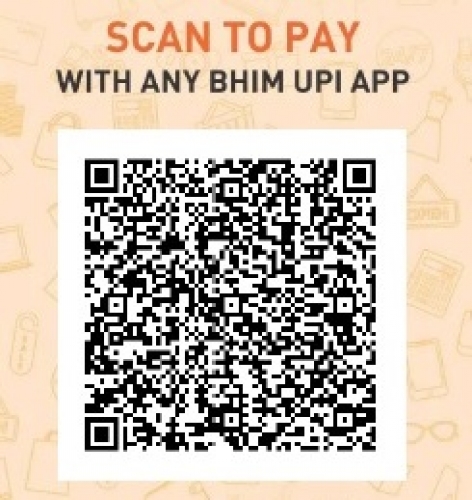
- Indian Nationals can also pay through UPI code given below:
PROCEDURE FOR OBTAINING DONATIONS / CONTRIBUTION RECEIPT:
- Login on the web portal with your Email ID / Member User ID and Password.
- Click link Accounts->Contributions, to open Contribution Search Form
- Click button Search to open table for all your contributions.
- Find your all Donations/Contributions simply by clicking button Search. Your all contributions/donations will be shown in table, with each row containing a button Download Contribution Receipt. Simply click this button in the row, for which PDF copy of the receipt is required to be downloaded.
- Please note that the Download Contribution Receipt Button is available only for verified contributions/donations.
Member Fee Details for different type of memberships, can be viewed in the Membership Tab on Home Page.

President's Message
MBM has a rich legacy of pioneering academic programs and maintaining high technical standards. Our commitment to excellence in education extends beyond the classroom, aiming to create an integrated and influential environment that serves our nation. As one of the oldest engineering colleges in India, MBM Engineering College has a rich legacy of producing excellent quality engineers who have contributed immensely to the technological development of our country and globally
I am thrilled to announce the official launch of the MBM Engineering College Alumni Association Re-Vamped Web Portal.
The association’s website serves as a digital hub for our vibrant alumni community. Here are some key features and updates:
- Web-Based Emails: Members will continue to receive automated web-based emails for Happy Birthday and Wedding Anniversary Wishes. These emails are sent daily to members whose birth dates and email addresses are available in the system database.
- Contribution Entry: Members who contribute towards new/upgraded membership or donate for charity/welfare causes can enter their contribution details in the Contribution Entry form. Don’t forget to notify the Alumni Office via email.
- Profile Updates: Members can update their profile particulars, address, family details, job information, and upload profile photos on the Member Profile page.
- Association News: Stay informed about association activities through the Association News section.
- Member Comments: Share your feedback and suggestions for the association and web portal in the Member Comments section.
- UPI Payments: Members can now conveniently pay their membership contributions and donations through UPI. The QR code image for UPI payments is available on the Membership & Donations tabs on the home page. MBM Engineering College Alumni can interact with the association in various ways to stay connected, contribute, and participate in activities. Here are some ways alumni can engage:
- Attend Alumni Events: Participate in reunions, workshops, seminars, and cultural events organized by the association. These gatherings provide an excellent opportunity to reconnect with old friends, network, and share experiences.
- Join Online Forums and Social Media Groups: Many alumni associations have active online forums, Facebook groups, or LinkedIn pages. Join these platforms to engage in discussions, share updates, and collaborate with fellow alumni.
- Mentorship Programs: Offer mentorship to current students or recent graduates. Share your industry insights, career advice, and guidance. Mentorship programs strengthen the bond between alumni and the institution.
- Contribute to Alumni Publications: Write articles, success stories, or technical papers for alumni newsletters, magazines, or blogs. Your experiences and expertise can inspire others and keep the community informed.
- Volunteer for Association Activities: Volunteer your time and skills for organizing events, fundraising drives, or community service initiatives. Your active involvement contributes to the association’s success.
- Attend Webinars and Workshops: Stay updated on industry trends, technological advancements, and professional development by attending webinars and workshops organized by the association.
- Share Job Opportunities: If you come across job openings in your organization or network, consider sharing them with fellow alumni. Helping each other find employment strengthens the alumni network.
- Contribute Financially: Alumni contributions play a crucial role in supporting scholarships, infrastructure development, and research initiatives. Consider making regular donations to the association.
- Update Contact Information: Keep your contact details updated with the association. This ensures that you receive invitations, newsletters, and event notifications.
- Nominate Distinguished Alumni: If you know of any alumni who have achieved remarkable success in their fields, nominate them for awards or recognition by the association.
MBM Engineering College Alumni Association continues to foster connections, celebrate achievements, and contribute to the growth of our alma mater. Let’s come together to strengthen our bonds and create a positive impact on society. Remember, your active participation enriches the alumni community and helps maintain the legacy of MBM Engineering College. Let’s continue to support each other and contribute to the growth of our alma mater!
Warm regards,

Web Portal Developmement Team
- O. P. Madhvi: 1968 MBM Graduate, Ex Chief Engineer (IT) and Ex Associate Director (OPS), Nuclear Power Corporation of India Ltd. and Ex. Principal (SLBS Engineering College, Jodhpur)
- Vipul Kochar:1992 MBM Graduate, Founder testaing.com, Field: Software Testing
- Surendra Surana:1996 MBM Graduate, Ex. CTO, (Nokia Tanzania), Ex, CTO (Ericsson Nigeria), Ex. Director Business Development (Software AG) Field: Mobile Communications
- Mayank Gupta:2003 MBM Graduate,
- Abisek Gour:2016 MBM Graduate, Faculty M.B.M. Engineering College, Field: Teaching and Software Development
ASSOCIATION MILESTONES
- Founded: At the time of Silver Jubilee Celebration of College in 1976
- Founding efforts were made by Prof. Alam Singh, Prof. S. Divakaran, Prof. D V Talwar etc
- Constructed its own building in 1994
- Organized Golden Jubilee of MBM in 2001 in a Grand manner
- Over 6000 Registered Members
- 17 Chapters are working world over
- Celebrated its own Silver Jubilee in 2001
- Arranged contributions for alma mater over 9 Crores so far
- Distributed Scholarships to around 1000 students
- Awarding Gold/Silver Medals to Meritorious students through sponsors
- Facilitating adoption of needy Students of MBM
- Organizing Golden and Silver Jubilee Reunion functions of respective batches every year
- Constructed Girls Hostel at the cost of Rs about 7 crores.
- Got University status for MBM Engineering College to make it as MBM University.
- Helped College Environment through Green and Clean Environment initiative
- Arranged PPT kits, Oxygen Concentrators etc. during Covid pandemic for hospitals.
Procedure for Registration of Students and Online Scholarship Application
- Click Button REGISTER. Read Data Entry Guidelines before entering details in the Registration Form.
- Select Member Type as Member Student. Enter requisite details in the form and then click button Register.
- After submission of Registration Form, Member Profile Form will open automatically, along with data already entered in Registration Form in the Main Tab of Member Profile Form.
- Enter rest of relevant details in the Main Tab and Upload photo. (Click button Upload Photo, to open pop-up window for selection of photo and uploading photo. After photo upload, Click button Close Window. Save data on Main tab by clicking button Update Main Profile Details. (Some new input fields have been added on Main Tab. Students, who have registered earlier, must enter new required details in this tab of the form.)
- Click on Tab Address. Click button Add New Address and then enter your address details in the form and click button Update / Save Address. (Students must enter both current address and permanent address)
- Click on Tab Family. Click on button Add New Family Member. Enter details about your all family members, one by one and save details of family members by clicking button Save New Family Member. (Students must change income of parents for current financial year and also enter their Aadhar Number)
- Click on Tab Education. Click button Add New Student Examination Record. Add all examination details and marks obtained in each semester in the form for the examination passed in previous academic year.
- Click on Tab Scholarship. Click button Add New Scholarship. Enter all requisite details for current academic year regarding your all expenses, other financial support etc. in the form.
- Click button Get Scholarship Group IDs to open pop-up window for Scholarship Group ID selection. Select Group ID of desired scholarship one by one, by clicking mouse anywhere in the desired scholarship row. (Click in only one row, if group contains multiple rows.) Once three Group IDs are selected, these will be posted in the input box located above the scholarship table. Click the button Post to Scholarship Form to place selected Group IDs in Scholarship Tab form.
- Add your proposed contribution for Association / College activities in Proposed Contribution text box.
- Add details about your achievements, projects, published papers and also extra-curricular activities like games, sports, music, NCC, NSS etc. in Extra Curricular Activities text box.
- Click button Student Undertaking to open Undertaking window. Read it carefully. Select Radio button Accepted, if you agree with undertaking contents.
- Click button Save Scholarship Registration Record, to save scholarship application.
- All the student details can be edited by student anytime afterwards also, after login and clicking link Members->Member Profile.
- Students should Update data in the Main, Address & Family tabs and enter new data in Education and Scholarship Tabs in the Member Profile form, each year, before taking the print-out of Scholarship Application.
- Students should take the print-out of the Scholarship Form from the web portal and submit it in the Alumni office, along with the Scholarship Application Fee of Rs. 100.
- Students should enter Scholarship Fee Payment Details on the web portal. For this, login and then open Contribution Entry Form through the link Members->Contribution Entry. Apart from entering the requisite payment details, select Contrib Head as Scholarship Fee and then click Save Contribution Record to save record.
|
|
|